Pages

20 August 2009

How-To: Install KDE 4.3 in Ubuntu/Kubuntu 9.04 Jaunty Jackalope

KDE 4.3 was released just yesterday, and it comes with a lot of great new features and improvements, like the the new Plasma theme called Air, new Plasma widgets, several improvements to Dolphin, the default KDE4 file manager, improvements to the KDE games, and these are just a tiny part of all the improvements KDE4 introduced. The full announcement including reader's changelog can be found on the official KDE4 website, here.

Kubuntu comes with an older release of KDE4, but there is a PPA (Personal Package Archives) available which includes the newest packages for Jaunty, so in order to install it just follow the steps below.

First, open up a terminal like Konsole or GNOME Terminal and edit the sources.list file using your favourite text editor, e.g.:

sudo nano /etc/apt/sources.list

Or, for Kate:

sudo kdesu /etc/apt/sources.list

If you are installing KDE from Ubuntu, you can use Gedit:

sudo gedit /etc/apt/sources.list

Enter your user password and add the following repository line:

deb http://ppa.launchpad.net/kubuntu-ppa/backports/ubuntu jaunty main

Next, make sure to save the file (Ctrl+O followed by Ctrl+X in Nano) and update the package lists:

sudo apt-get update

All you have to do now is to install the new KDE 4.3 environment by issuing:

sudo apt-get dist-upgrade

Should take a while. This will fetch and install all the newer packages from the freshly added repository. To see the new KDE 4.3 installation log out and log back in KDE, or open up Konsole and type:

sudo /etc/init.d/kdm restart

source from tuxarena.blogspot.com

KUbuntu 9.04 Jaunty

What's New?

Kubuntu 9.04 includes an upgraded desktop containing many bug fixes, new configuration options, as well as many new and updated applications. Below are some highlights.

KDE 4.2

9.04 includes KDE 4.2.2, the latest version of their amazing desktop environment. On top of the many bug fixes included, this version also contains many improvements and new features, including:

  • Significant refinements of Plasma and KWin, the KDE workspace
  • Many new and updated plasma widgetsNew and improved desktop effects (enabled by default)
  • The return of the optional "Classic Desktop" motif as an option
  • More desktop configuration optionsImproved System TrayNew, improved notifications
  • and more...

For complete details see the KDE 4.2 announcement and the KDE 4.2 Visual Guide.

System Settings

New in System Settings are tools for managing software and printer configuration.

Software management can now be performed from within System Settings with the new Package Kit application.


Printer configuration is also now found in System Settings as well, in the Advanced tab.


Quassel for IRC

Quassel is a new IRC client that is now the default for Kubuntu 9.04. A new setup wizard makes getting started a breeze.

Amarok 2.0.2

Kubuntu 9.04 now comes with the recently-released Amarok 2.0.2, the second bugfix/enhancement release in the Amarok 2 series, which includes integration of online services such as Last.fm, LibriVox, Jamendo, Magnatune and more. Amarok gives you a new way to listen to your music, and we highly recommend that you check it out.

KDE 4 Network-Manager Plasma Widget

The new plasma-widget-network-manager replaces the old KNetworkManager applet.


'''''NOTE''''' : ''Upgraders may have to add the Network Management plasma widget to their taskbar or desktop manually''
Click the Plama icon in the bottom right. Click Add Widget. Double click on Network Management.

KTorrent 3.2

KTorrent has been updated to version 3.2. This version brings new features, a heaping of bugfixes and fixes for memory leaks. It also brings a new KTorrent plasmoid to grace your desktop installable as the plasma-widget-ktorrent package.

Digikam 0.10.0

Digikam has been updated to its first KDE 4 release. This version is not a complete port to KDE 4 technologies (Solid, Phonon...), but it includes major functionality improvements:

  • Support on multiple root album paths (including basic support for albums on network)
  • Geolocation with Marble widget
  • XMP support
  • New Camera UI with capture support
  • Major improvements of Search interface
  • Improved image editor with integrated tools

Together with new Digikam, there is also the first KDE 4 release of KIPI Plugins 0.2.0. It provides new import/export plugins for SmugMug, Facebook and 23 web photo services. Digikam is not installed by default, but can be installed later on at your choice.

Qt 4.5

Kubuntu 9.04 ships with latest Qt, version 4.5, which brings a faster desktop experience as well as new features. More information can be found in the Qt what's new page.

GTK application integration

Kubuntu 9.04 offers improved visual integration of GTK applications into its KDE environment. Using QtCurve 0.62.8, your favourite GTK applications such as Firefox and Pidgin (to name a few) will take on a theme similar to the rest of your KDE applications.

Source from Kubuntu.org

10 May 2009

ReactOS - Win XP twin and its FREE~!!!

Korang pernah dengar ReactOS tak? kalau pernah, baguslah. Tapi kalau belum, meh baca kat sini. ReactOS ni adalah satu project sistem pengoperasian (OS) sumber terbuka ( Open Source ) dan diberi percuma. OS ni based on Windows NT architecture design. Maknanya kat sini, OS ni boleh support Microsoft Windows compability driver and software. Dibina seiras win XP/2003. OS ni tidak menggunakan sebarang architecture dari linux atau unix. Cuma yang tak best, OS ni masih diperingkat Alpha Stages, bermaksud, tak sesuai digunakan untuk tugasan harian. Version paling latest ( ikut waktu aku taip ni ye~!! ) adalah 0.3.9. Korang boleh take a peek kat official website diorang kat sini. Ni antara screenshot OS ni. ( Aku ambil dari weebsite diorang le~!! )

Ni lah dia rupa OS tu .. boleh tahan gak.


Menggunakan OpenOffice 1.1

08 May 2009

Pening

16/04/2009 - 30/04/2009 - aku kene gi induksi. enjoy weh~!!!!.. hahahaha .. orang lain dah lama pegi .. aku baru nak terhegeh-hegeh gi.

Shot mr. mox, aku and inceksyah. guna inceksyah punye camera, shot diambil oleh cris teletubbies. cantik gak. pasni nak sah jawatan, ambik exam ptk, naik pangkat, ambik pjj pastu naik pangkat lagi ... fuh.. besar betul impian aku, macam roda impian lak ..

06 May 2009

Easy live upgrade from 11.0 to 11.1

Assalammualaikum, i found this tutorial while looking how-to upgrade opensuse 11.0. Original post can be found here : http://lizards.opensuse.org/2009/03/08/easy-live-upgrade-from-110-to-111/

It turns out that the most problematic part was the new RPM-”Distribution” string for openSUSE since 11.1. As openSUSE is now completely build in the openSUSE Build Service, the Distribution string of each package switched from “SUSE LINUX Products GmbH” to “openSUSE 11.1″ - and zypper complains about this vendor switch during a live upgrade.

My Solution: Just create a new file “/etc/zypp/vendors.d/openSUSE” as root and insert the following content:

[main]
vendors=openSUSE,SUSE LINUX Products GmbH

Now, zypper identifies packages from Vendor “openSUSE” as the same as packages from vendor “SUSE LINUX…”
Whats left is the adaption of the repositories (they should point to 11.1 now):

localhost:~ # cd /etc/zypp/repos.d/
localhost:~ # sed -i “s|11.0|11.1|g” *

…and right afterwards, the show can go on…

localhost:~ # zypper ref

Retrieving repository ‘OBS-Edu’ metadata [done]
Retrieving repository ‘Packman Repository’ metadata [done]


localhost:~ # zypper dup

Loading repository data…
Reading installed packages…
Computing distribution upgrade…

The following packages are going to be upgraded:


Press “y” and Enter - and go to bed or something else - next day, reboot your machine and welcome your new 11.1!

13 January 2009

Configuring Static ip address in Ubuntu server


Ubuntu installer has configured our system to get its network settings via DHCP, Now we will change that to a static IP address for this you need to edit Edit /etc/network/interfaces and enter your ip address details (in this example setup I will use the IP address 172.19.0.10):

sudo vi /etc/network/interfaces

and enter the following save the file and exit

# The primary network interface

auto eth0
iface eth0 inet static
address 172.19.0.10
netmask 255.255.255.0
network 172.19.0.0
broadcast 172.19.0.255
gateway 172.19.0.1

Now you need to restart your network services using the following command

sudo /etc/init.d/networking restart

You need to setup manually DNS servers in resolv.conf file when you are not using DHCP.

sudo vi /etc/resolv.conf

You need to add look something like this

search domain.com

nameserver xxx.xxx.xxx.xxx

12 January 2009

The Future is OPEN

While surfing through the net, i stumble upon this cool video.

11 January 2009

Installing Ubuntu Hardy 8.04 LTS

Step 1 - Download the Ubuntu 8.04 Desktop ISO image, that corresponds to your hardware architecture (i386 or amd64), from here.

Step 2 - Burn the ISO image with your favorite CD/DVD burning application (on Windows, you can use one of the following applications: Nero, CDBurnerXP, Roxio etc) on a blank CD at 8x speed.

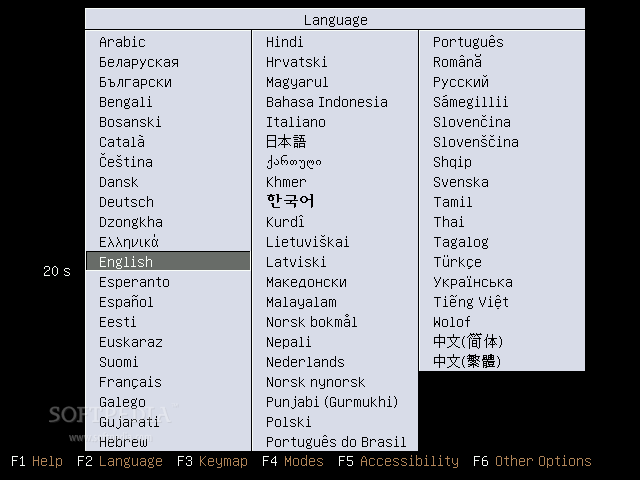
Step 3 - Insert or leave the CD in your CD/DVD-ROM device and reboot your computer. Select your language when asked:

Review image
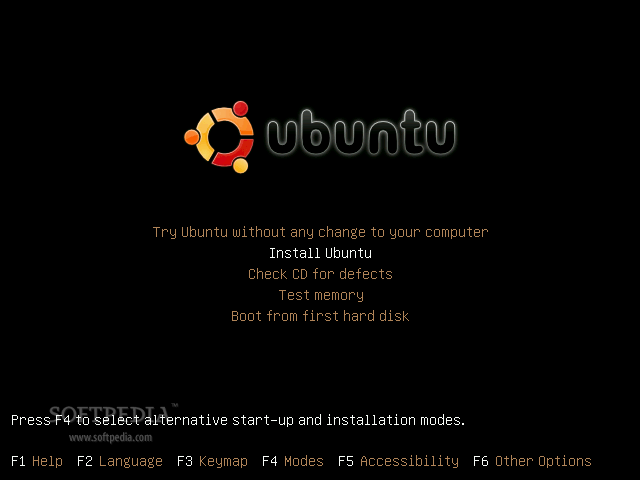
Then select the second option "Install Ubuntu" and hit Enter:

Review image


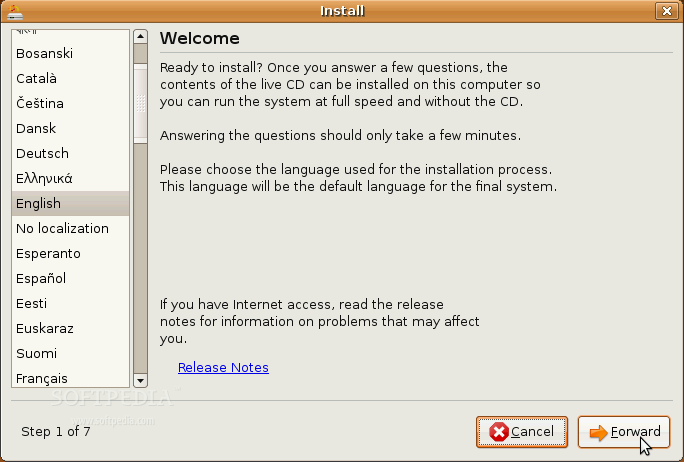
Step 4 - Wait for the CD to load into RAM, and when the installer appears, select your native language and click the 'Forward' button:

Review image


Review image


Where are you?

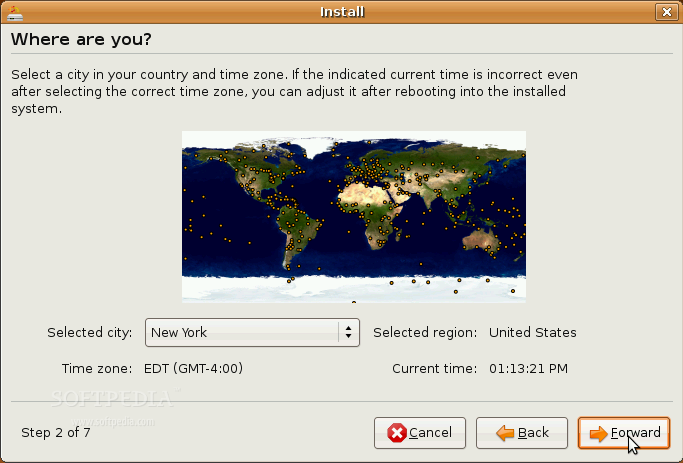
The second screen will feature a map of the Earth with little red dots, so you can select your city/country. Upon the current selection of your location, the time for the final system will adjust accordingly. You can also select your current location from the drop down list situated at the bottom of the window. Click the 'Forward' button after you have selected your desired location.

Review image


Test your keyboard

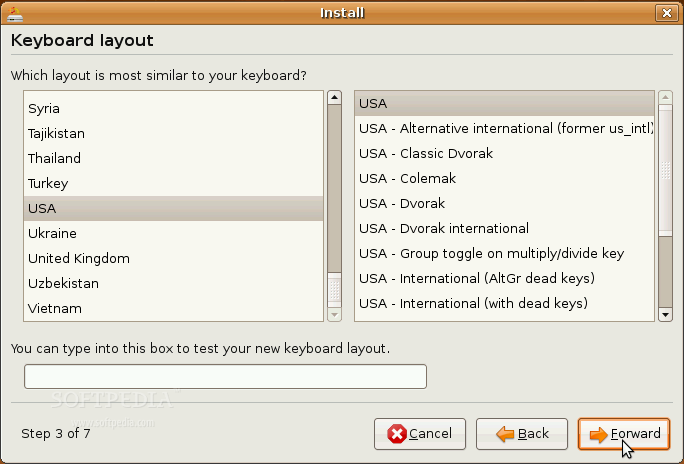
On the third screen, you will be asked to select the keyboard layout that suits you best (default is U.S. English). You can also test your keyboard on the little text input field situated at the bottom of the window. Click the 'Forward' button when you have finished with the keyboard configuration.

Review image


Hard disk partitioning

Hold on, don't leave just yet! The hard disk partitioning is an easy task, so I am quite sure you will manage to handle it too. You have three options:

Review image


1. If you want to keep your existing operating system (e.g. Dual boot with Windows XP), select the first option: "Guided - resize the partition and use the freed space".
2. If you want to delete your existing operating system and you want to let the installer to automatically partition the hard drive for you, select the second option: "Guided - use entire disk".
3. Manual is the third choice at this point and I strongly suggest you to use it if you don't have any other operating system installed and your hard drive does not contain important data on it. Follow the instructions below:

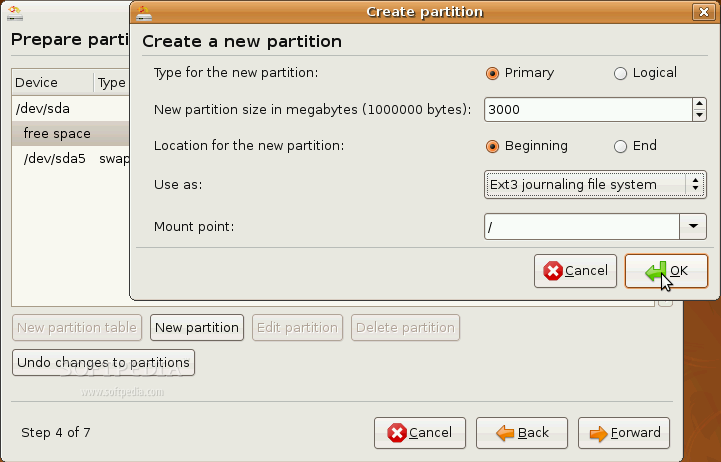
Choose the hard drive partition (or entire hard drive if you don't have any partitions) you want to format and click the 'Delete partition' button to delete the selected partitions. In the end, you should have a single entry called "free space", select it and click the 'New partition' button to create the 'root' partition. Select "Primary" for the partition type, set the size of the partition (in megabytes), leave the "Location for the new partition" and "Use as" options as they are and select the mount point "/" (just like in the image below).

Review image


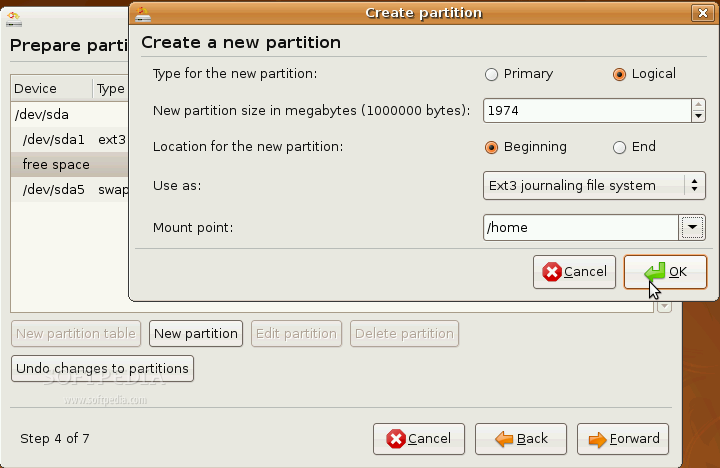
You should still have a "free space" line, select it and click the 'New partition' button to create the 'home' partition. Select "Logical" for the partition type, set the size of the partition (in megabytes), leave the "Location for the new partition" and "Use as" options as they are and select the mount point "/home" (just like in the image below).

Review image


You should still have some "free space" left, so select it and click the 'New partition' button to create the 'swap' partition. Select "Logical" for the partition type, set the size of the partition (in megabytes) twice your RAM (e.g. if you have 512 RAM, set the size to 1024), leave the "Location for the new partition" option as it is and set the "Use as" option to 'swap'.

WARNING: Be aware that all the data on the selected hard drive will be ERASED and IRRECOVERABLE!

Click the 'Forward' button to continue with the installation.

Who are you?

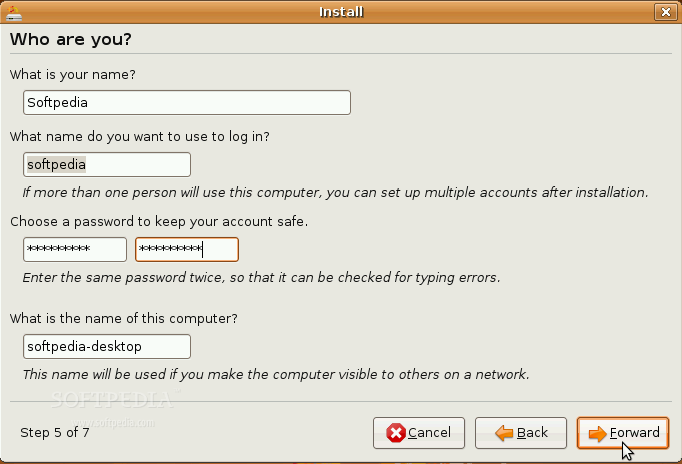
Here you must do exactly what the title of this step tells you to do. You must fill in a couple of fields with your real name, the name you want to use to log in on your Ubuntu OS (username), password and the name of the computer (automatically generated). Once you have finished with this step, click the Forward button again (for the last time).

Review image


Are you really ready for Ubuntu?

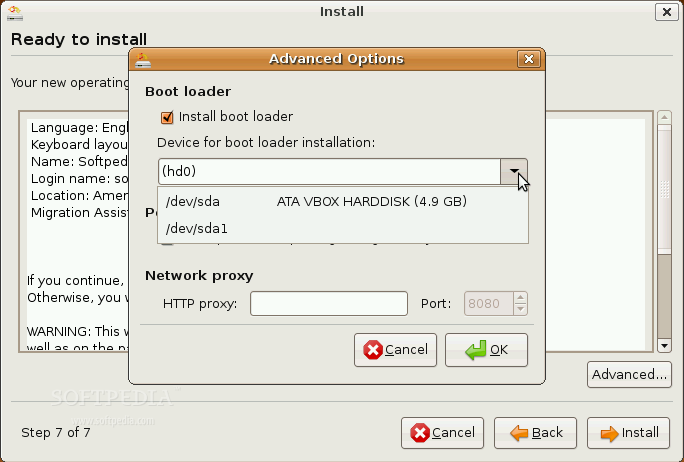
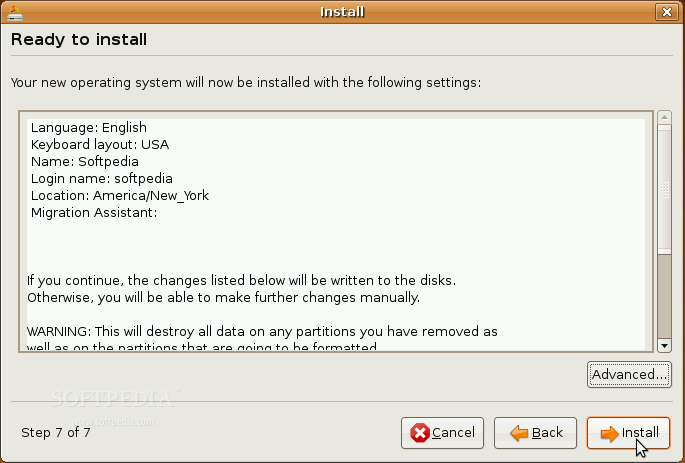
If you have successfully arrived at this point, then you are definitely ready for your new Ubuntu operating system. So, what are you waiting for? Click the 'Install' button NOW!

Review image


Review image


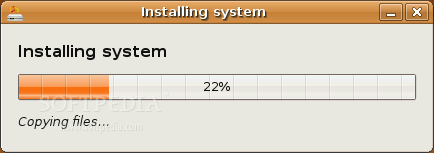
The Ubuntu 8.04 (Hardy Heron) operating system will be installed...

Review image


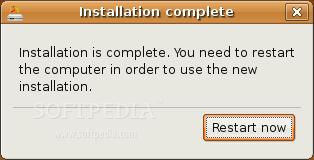
Step 5 - After approximately 8 to 10 minutes, a pop-up window will appear, notifying you that the installation is complete and you need to restart the computer in order to use the newly installed Ubuntu:

Review image


Review image


Review image


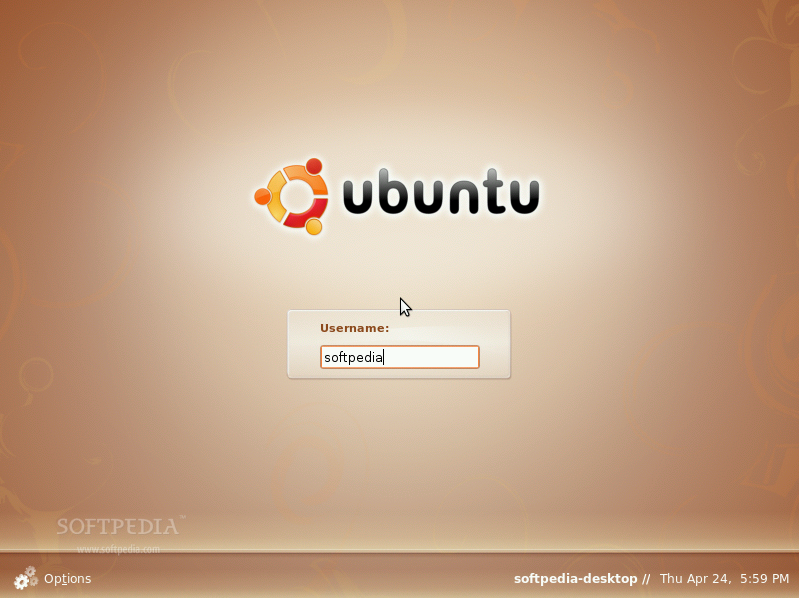
You've probably clicked the 'Restart now' button, because you were very excited to see your new Ubuntu operating system at work. Well then, have fun using it!

01 January 2009

Compiz on Ubuntu - tutorial

Seperti yang dijanjikan, tutorial untuk install compiz on ubuntu.
** Tutorial taken form - http://www.tectonic.co.za/wordpress/?p=916 ** so.. credits goes to them, not me~!!!

Step one
Let’s add dapper sources to apt. If you are one of the lucky ones already running it, skip to the next step. Otherwise, just throw this line in /etc/apt/sources.list/: deb http://archive.ubuntu.com/ubuntu/ dapper main universe restricted multiverse apt-get update, apt-get dist-upgrade, and you’re good to go. As has been mentioned in some feedback, this can take a long time, especially for those without very fast connections. However, I would recommend it for this tutorial. My main man Exdaix reports that trying to pull down the Compiz package on Breezy ended up pulling down a lot of Dapper packages anyway… so be cool like him, and dist-upgrade.

Step two
Let’s pull down some new stuff. Since around 15 February, everything you need should be in two packages. Ubuntu has now split the Compiz window manager components into separate packages. Depending on your desktop environment, add compiz-gnome or compiz-kde to this list. Open a terminal, and: apt-get install xserver-xgl compiz (compiz-gnome or compiz-kde here) Okay! Compiz and everything we need is installed.

Step three
Now, everything we need is ready. We just have to invoke it. My technique of preference is to stick everything in userspace scripts, rather than create symlinks or modify gdm.conf-custom. I do this because (like before) I’m lazy, and would rather not make system-wide changes if I don’t have to. So, open your favourite text editor. Throw this little passage in ~/.Xsession (and create if necessary): (Credit for the original version of this script goes to http://doc.gwos.org/index.php/Installxgl.) Note: I have an ATI card. If you are using Nvidia, try replacing Xgl :1 -fullscreen -ac -accel xv -accel glx:pbuffer & with Xgl :1 -fullscreen -ac -accel xv:fdo -accel glx:pbuffer &. If you want to run KDE, try replacing gnome-window-decorator with kde-window-decorator, and exec gnome-session with exec startkde.

#!/bin/sh
# Start up Xgl, compiz, and GNOME
# Run Xgl server on :1, on top of normal X
Xgl :1 -fullscreen -ac -accel xv -accel glx:pbuffer &
# Tell subsequent X programs to access the Xgl server at :1
DISPLAY=:1
# Start Compiz window manager
gnome-window-decorator &
compiz gconf decoration wobbly fade minimize cube rotate zoom scale move resize place menu switcher &
# Start GNOME
exec gnome-session

Now make sure it’s +x’d/executable with chmod +x ~/.Xsession. We have now set up your user X session to start the Xgl acceleration on top of regular X, initialize Compiz, and then start Gnome in the new GL-groovified layer. Do note that since Gnome is running on top of our Xgl layer, Gnome and your desktop applications will be running on the Xgl display :1 instead of the usual :0. Try ‘Er Out!
Let’s see if what we did worked. Now cross your fingers, clamp your eyes shut, and reverently whisper “gui acceleration.” Yes, you’ll have to close this Howto. Try to hold back the tears, however hard that may be. Here’s what we’ll do. In just a moment, log out of Gnome. Then open that menu at the bottom left and change the session: make sure you’ve selected the default session setting, so that our .Xsession file is run. But wait, where’s my fallback plan? What if things go wrong? If anything breaks or starts acting scary, just close down, reboot, or somehow intervene. If you wish to undo, simply go back to GDM and change the session to “Failsafe Gnome.” The .Xsession file responsible for initializing the Xgl layer should not run, and you can delete it in the comfort of your gui environment. In the worst case, you can log into single user mode from grub and delete the file there. I include this because I know it’s no fun to be left with a non-functioning X configuration without knowing how to undo it - only because I’ve been there so many times. This is not rocket science, but it *should not* torch your system. However, know that there are lots of options. If things work, you’ll see a checkerboard pattern come up on login, followed by a blue background. The Gnome splash screen will then fade and wobble in with the most rockin’ graphics you’ve ever seen. Come right back here and I’ll show you what you can do with your new bling machine. Now, go do it! May the geforce be with you, and all that.